Why ColorHCFR
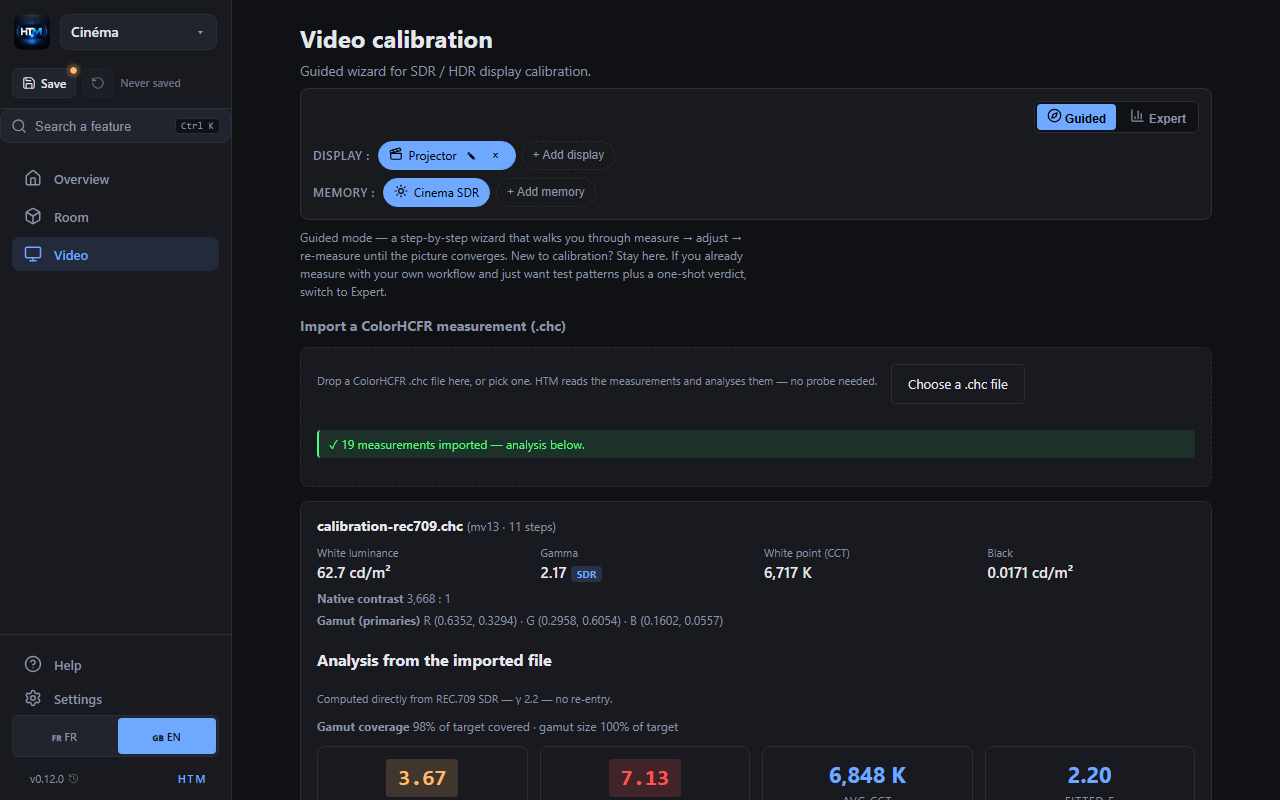
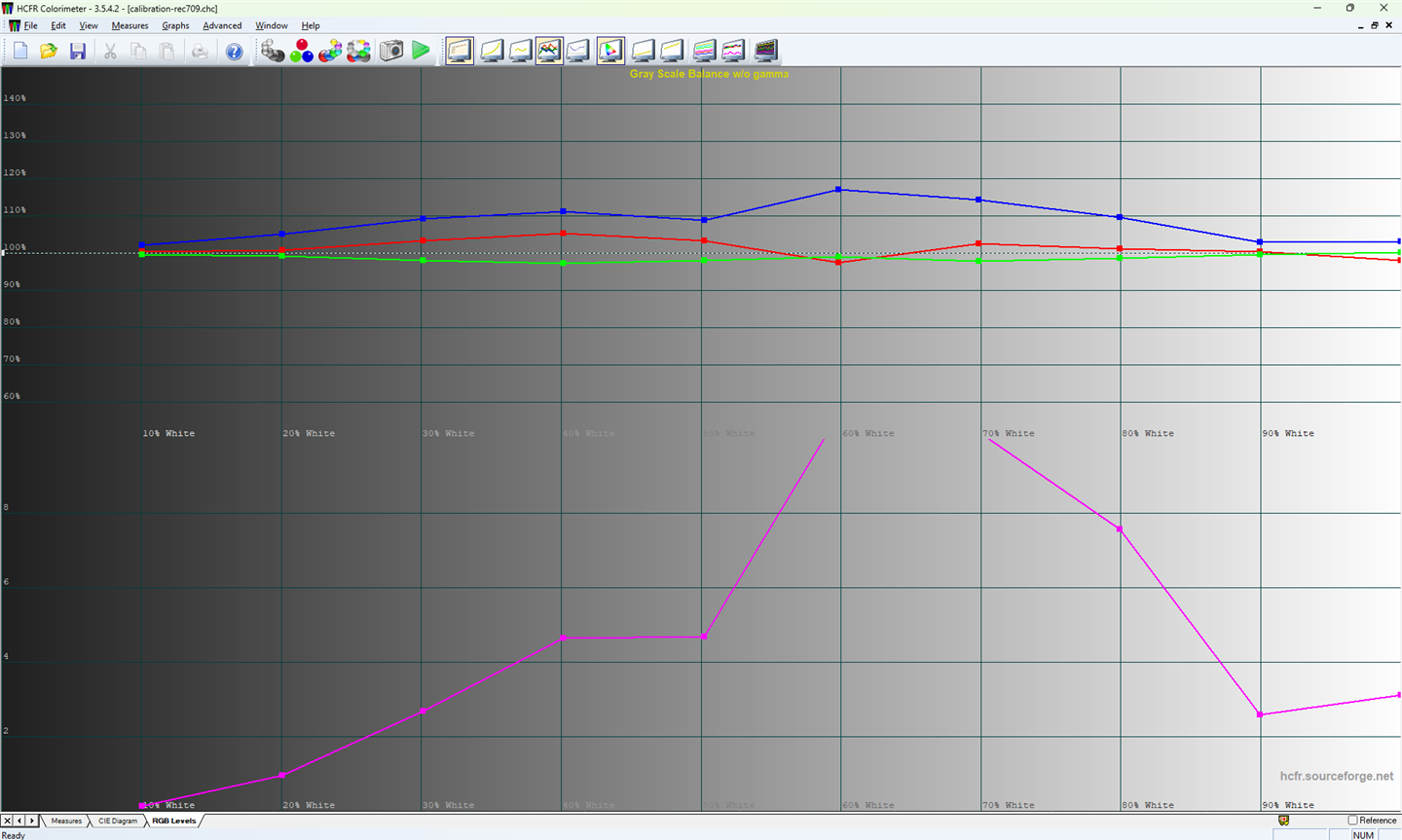
Setting the picture "by eye" is misleading. ColorHCFR measures objectively: black and white levels, gamma, greyscale balance, primaries and secondaries, and the colour error ΔE 2000. Free and open-source. HTM then imports the .chc file and turns it into a readable analysis: verdicts and actions to take.
What you need
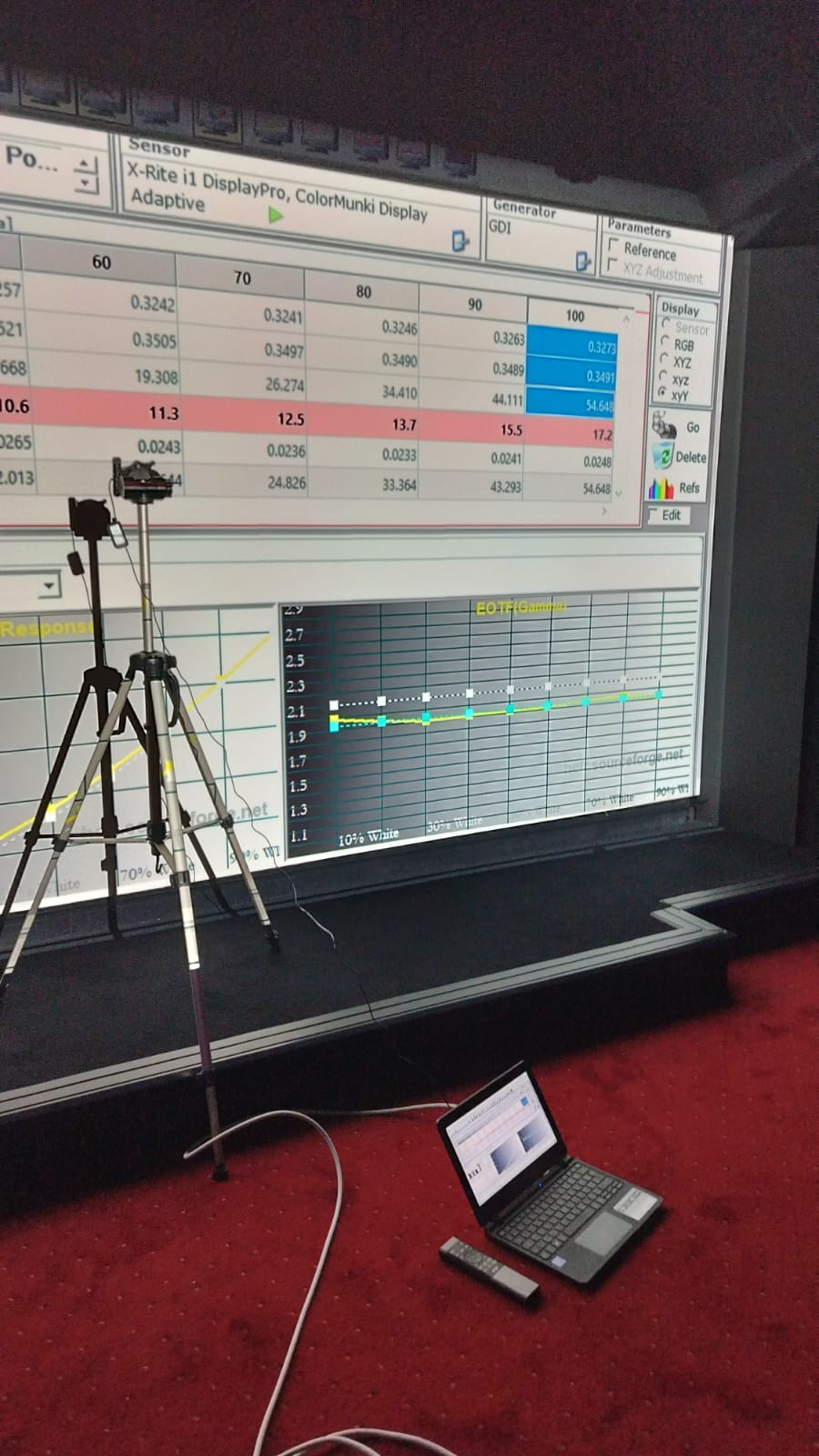
- A probe: a colorimeter (fast), ideally backed by a spectrophotometer to profile the colorimeter to your display technology.
- ColorHCFR installed (free / open-source), from the project repository.
- Test patterns: ColorHCFR's own, or the full-screen patterns built into HTM.
The broad steps
1 · Install ColorHCFR and connect the probe
Install the software, plug in the probe and select it in ColorHCFR. Let the display warm up for a few minutes before measuring.
2 · Choose the reference
Set the target to match the source: Rec. 709 for SDR; for HDR, pick the right transfer function (PQ / ST 2084, or HLG) together with the wide-gamut primaries the content uses (BT.2020, in practice DCI-P3 coverage on most displays). It defines the "correct" you're aiming for.
3 · Position the probe and show the patterns
Place the probe facing the screen (or in contact, depending on type), at the centre of the image, then display the test patterns.
4 · Measure
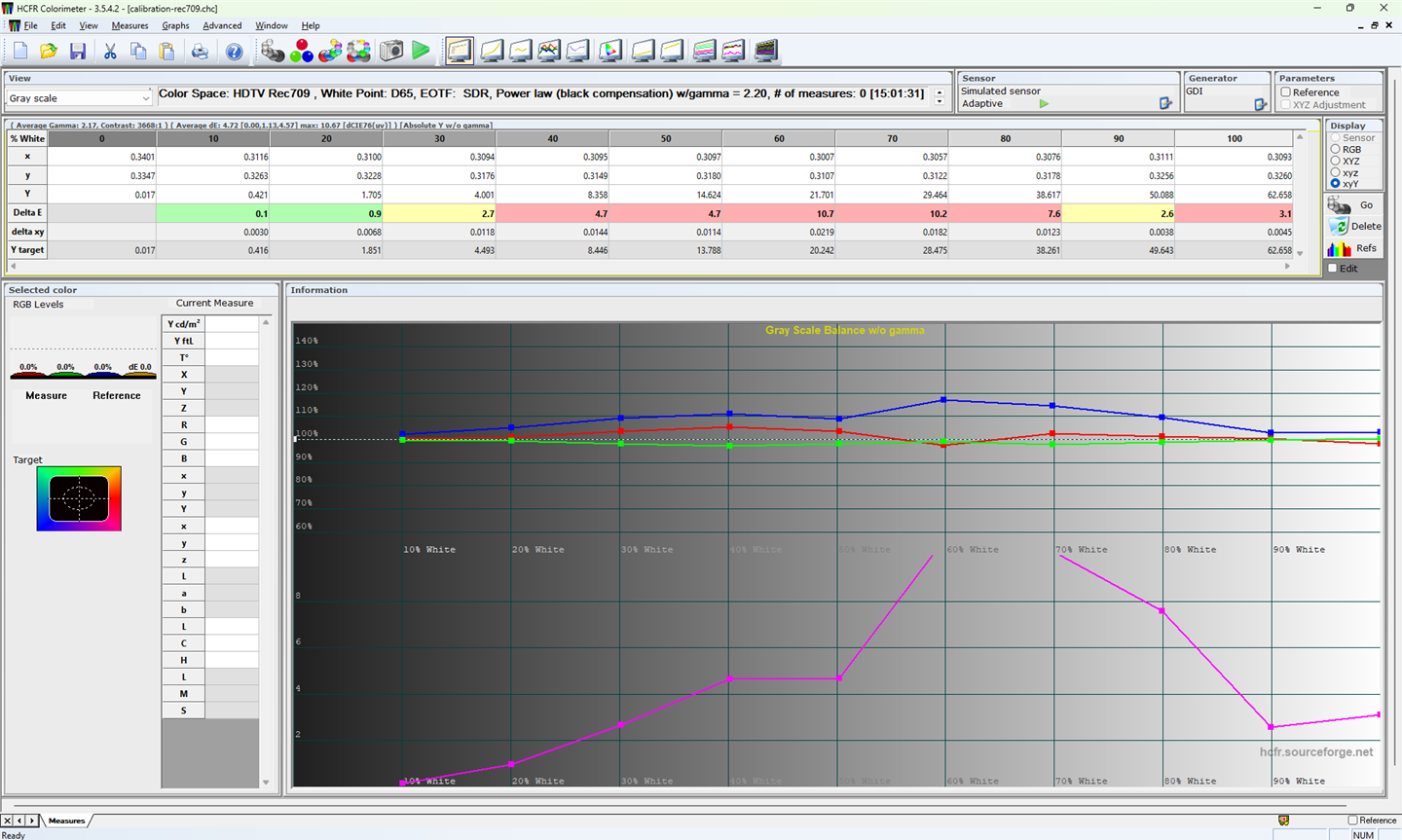
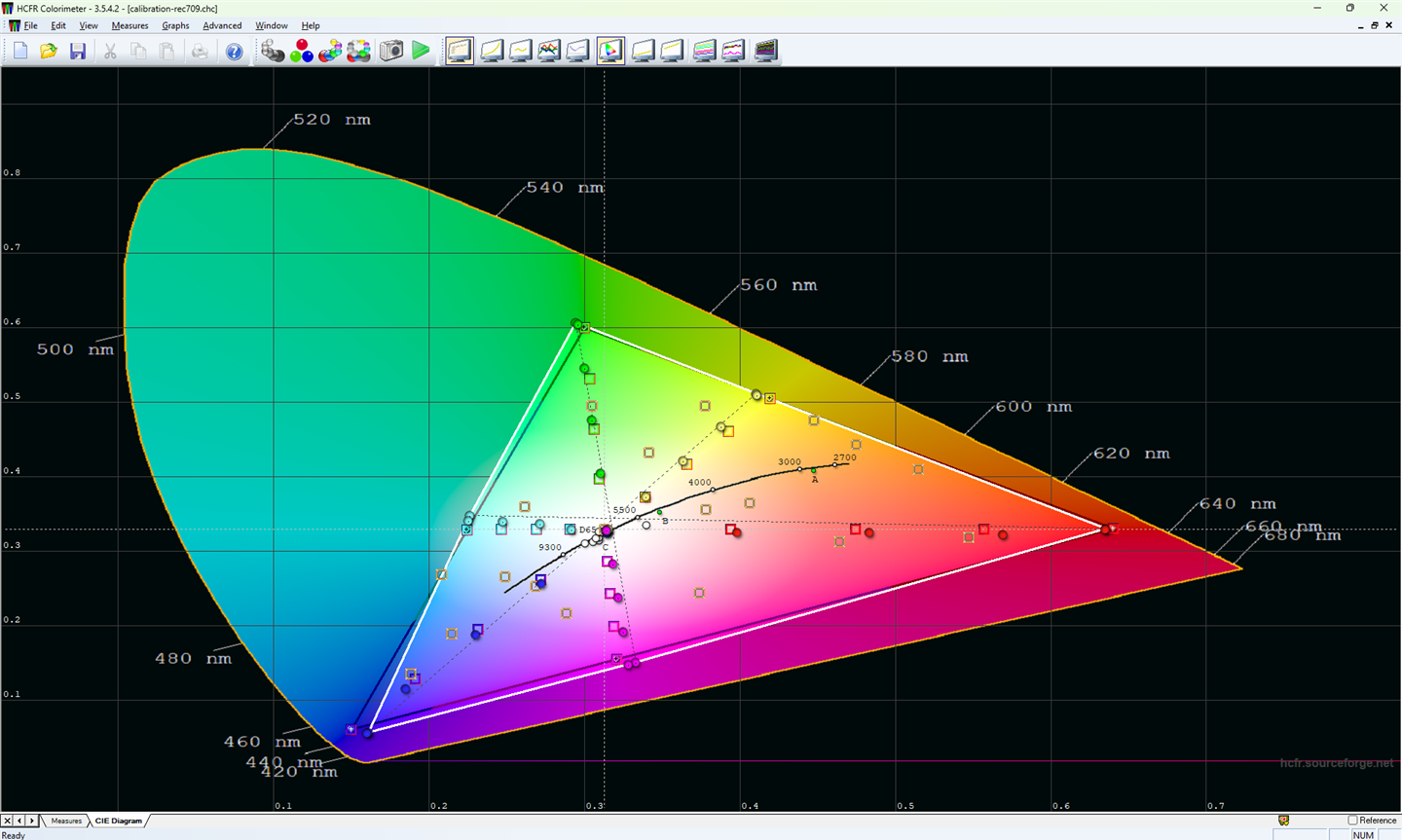
Run the series: greyscale (white balance + gamma), then primaries and secondaries (gamut). ColorHCFR charts the deviations from the reference.
5 · Correct, then re-measure
Adjust your display's controls (white balance, gamma, colour management), then re-measure to check the gain. You iterate until you land inside the target.
6 · Save the project
Save as .chc: that's the file HTM imports.